Create an Effective Business Dashboard in Notion
Learn how to create a powerful business dashboard in Notion to streamline your workflow and enhance productivity in this step-by-step guide.
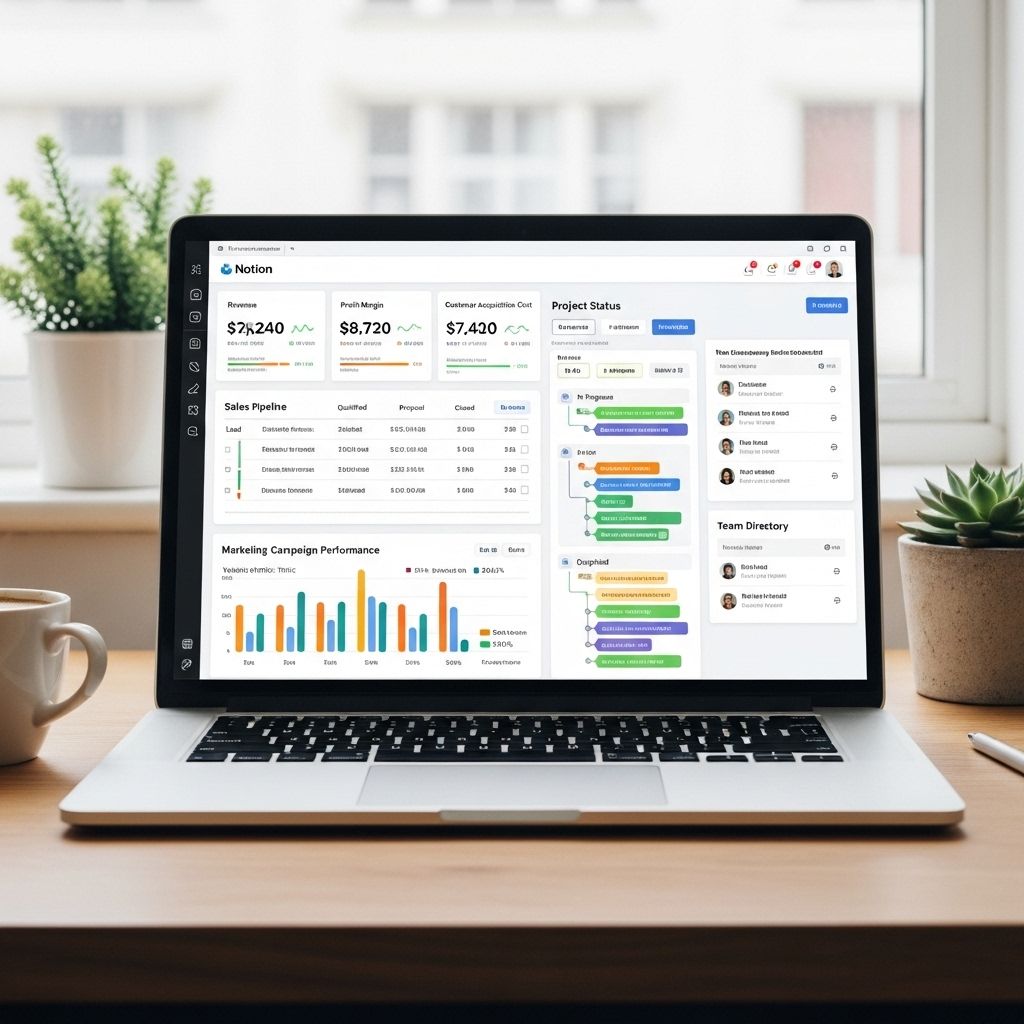
In today’s fast-paced business environment, having a clear visual representation of your key performance indicators (KPIs) can significantly enhance your decision-making process. Notion, the all-in-one workspace tool, allows users to create customized dashboards that can integrate various elements of project management, data tracking, and team collaboration. This article will guide you through the steps to create an effective business dashboard in Notion, ensuring you harness its full potential for your organization’s needs.
Creating an effective business dashboard in Notion can streamline your workflow and enhance productivity. By integrating key metrics and visual elements, you can easily track progress and make informed decisions. For inspiration on design, check out our 3D mockup collection.
Understanding Notion Basics
Before diving into dashboard creation, it’s essential to grasp Notion’s fundamental features. Notion is built on a database system, where pages can contain various blocks, including text, images, databases, and more. Here are some basic components you’ll frequently use:
- Blocks: The building units of Notion, including text, to-do lists, headings, images, and databases.
- Databases: A powerful feature that allows you to manage data in table, board, list, or calendar views.
- Pages: Each page can contain multiple blocks and databases, allowing for intricate relationships and structures.
Planning Your Dashboard
Identify Your Key Metrics
The first step in creating a business dashboard is to identify the metrics that matter most to your organization. These might include:
- Sales Performance: Track monthly sales, revenue growth, and top-selling products.
- Customer Engagement: Measure customer satisfaction scores, user activity, and retention rates.
- Marketing Metrics: Analyze website traffic, conversion rates, and campaign performance.
- Operational Efficiency: Monitor project timelines, team performance, and resource allocation.
Define Your Audience
Understanding who will use the dashboard is crucial. Different stakeholders may require different views or metrics. Consider:
- Executives: They may want a high-level overview of business performance.
- Managers: They may need detailed insights into team performance and project timelines.
- Team Members: They might focus on individual contributions and task status.
Creating Your Dashboard in Notion
Step 1: Set Up a New Page
Start by creating a new page for your dashboard:
- Open Notion and select the workspace where you want the dashboard.
- Create a new page by clicking on the + icon or typing ‘/’ and selecting ‘Page’.
- Name your page appropriately (e.g., ‘Business Dashboard’).
Step 2: Choose a Layout
Design your dashboard layout to suit your needs:
- Single-Column Layout: Best for simplicity, presenting information in a linear fashion.
- Multi-Column Layout: Ideal for a more organized view, allowing for multiple data points side by side.
- Grid Layout: Useful for extensive dashboards presenting various metrics in a visually appealing manner.
Step 3: Adding Data Sources
Utilize Notion’s database feature to import your data sources:
- Create a new database by typing ‘/’ and selecting ‘Database’.
- Choose the type of database (Table, Board, List, Calendar) based on your data and preferences.
- Import or input your data directly into the database; you can also integrate with external data sources if using Notion API or third-party tools.
Designing Your Dashboard Elements
Integrate Visuals
Visual elements enhance engagement:
- Graphs and Charts: Use Notion’s integration capabilities with tools like Google Sheets or Figma to incorporate graphs and charts.
- Images and Icons: Including relevant visuals will make your dashboard more engaging.
- Custom Covers: Give your dashboard a branded look with a custom cover image.
Utilizing Filters and Views
Customize how data is presented:
- Filter databases to show only relevant data (e.g., this month’s sales).
- Create multiple views (e.g., Kanban for project management, calendar for deadlines).
- Utilize sorting options to prioritize information (e.g., highest revenue first).
Enhancing Collaboration
Encourage team engagement by allowing team members to interact with the dashboard:
- Permission Settings: Set appropriate access levels for different users (view-only vs. edit).
- Comments and Discussions: Utilize Notion’s commenting feature to facilitate discussions on specific metrics or projects.
- Task Assignments: Integrate task lists where team members can assign actions based on dashboard insights.
Regular Updates and Maintenance
Schedule Updates
To keep your dashboard relevant, schedule regular updates:
- Set reminders to review metrics (weekly, monthly, quarterly).
- Assign responsibility for data updates to ensure accountability.
Gather Feedback
Continuously improve your dashboard by gathering feedback:
- Hold regular check-ins with users to understand what information is most useful.
- Be open to making iterative changes based on user experience.
Conclusion
Creating a business dashboard in Notion is an invaluable step towards enhancing your organization’s operational efficiency and strategic decision-making. By effectively utilizing Notion’s features—such as databases, visual elements, and collaboration tools—you can build a dashboard that meets the unique needs of your team. The key is to remain flexible and adapt the dashboard as your business evolves, ensuring that it continues to serve as a vital resource for driving results and success.
FAQ
What is a business dashboard in Notion?
A business dashboard in Notion is a centralized workspace that allows you to visualize key metrics, track performance, and manage tasks in one place.
How do I set up a business dashboard in Notion?
To set up a business dashboard in Notion, create a new page, add databases for tracking metrics, and use widgets or charts to visualize the data.
What types of data can I include in my Notion business dashboard?
You can include sales data, project timelines, team performance metrics, financial summaries, and any other key performance indicators relevant to your business.
Can I customize my business dashboard in Notion?
Yes, Notion allows for extensive customization, including layout, colors, and the types of views you use for your data.
Is it possible to share my Notion business dashboard with my team?
Absolutely! You can share your Notion business dashboard with team members by adjusting the sharing settings to allow access.
Are there templates available for business dashboards in Notion?
Yes, Notion offers various templates for business dashboards that you can customize to fit your specific needs.