Transform Your Sketch into a Stunning Logo
Learn how to turn your hand-drawn sketches into eye-catching logos with expert tips and techniques for graphic design.

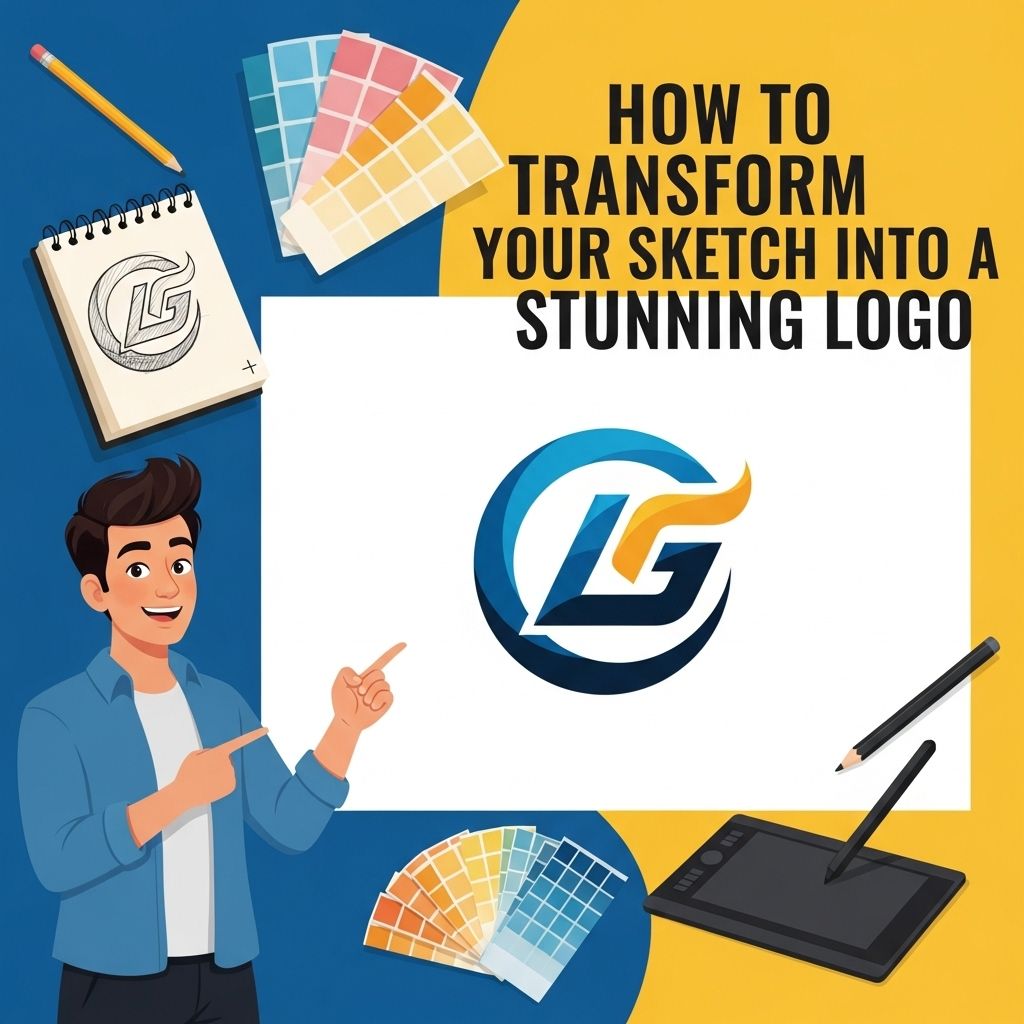
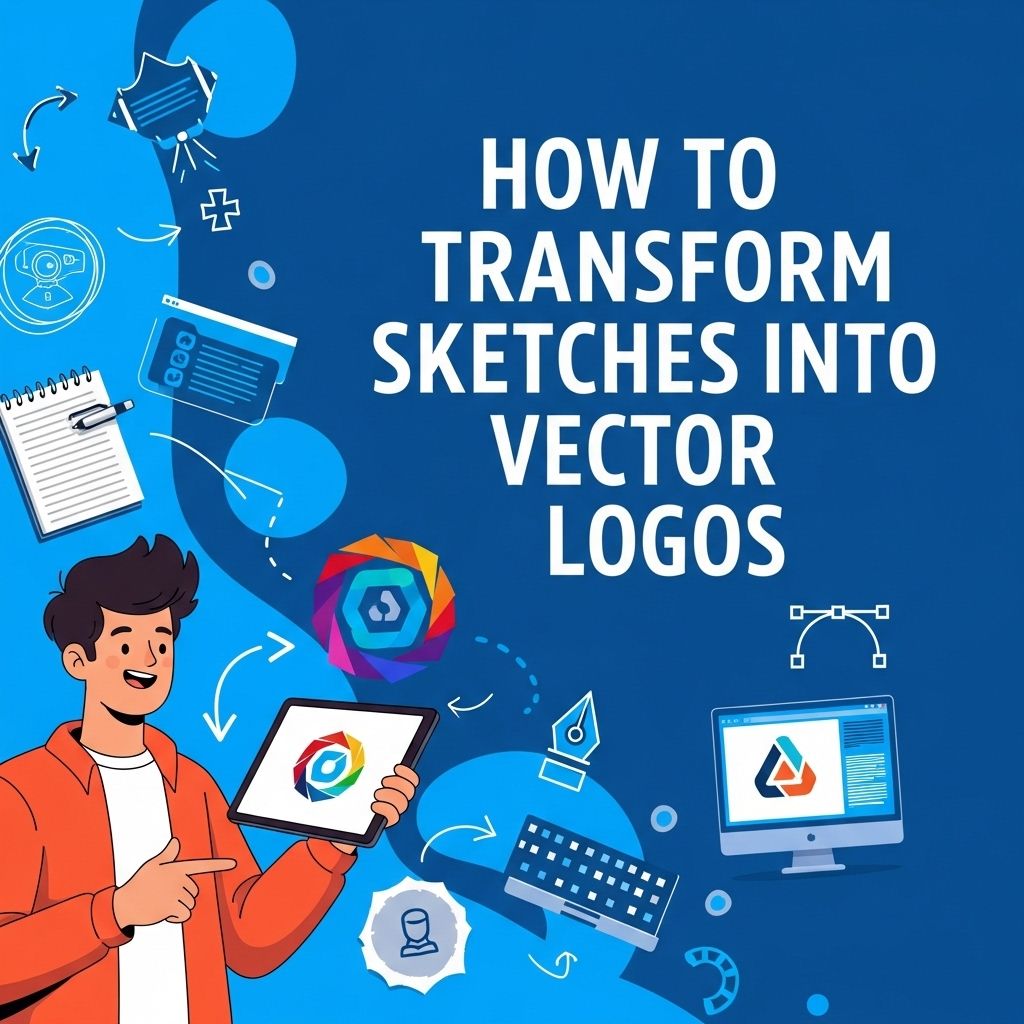
Creating a logo from a sketch is a fascinating journey that allows you to blend creativity with technical skill. A logo serves as the visual representation of a brand, making it essential for standing out in a crowded market. In this article, we will explore the steps involved in transforming your hand-drawn sketches into a polished logo design, focusing on practical techniques, useful tools, and best practices to ensure your logo not only captures your vision but also resonates with your target audience.
Transforming your sketch into a stunning logo is an exciting journey that merges creativity with professional design. With the right tools and inspiration, you can breathe life into your ideas and create a memorable brand identity. To get started, explore our logo mockup collection for visual insights and practical templates.
Table of Contents
Understanding the Concept of Logo Design
A logo is not just an image; it is a vital component of a brand’s identity. It encapsulates the essence of the company, communicating its values and vision to potential customers. Here are some key aspects to consider:
- Brand Identity: Your logo should reflect the personality and core values of your brand.
- Memorability: A good logo is easily recognizable and leaves a lasting impression.
- Versatility: Your logo must work across various mediums and applications, from business cards to websites and merchandise.
Step 1: Start with a Strong Sketch
The transformation process begins with your initial sketch. Here’s how to make it count:
1. Brainstorm Ideas
Start by jotting down keywords related to your brand. Think about what emotions and messages you want your logo to convey. From there, sketch multiple concepts, focusing on different styles, shapes, and symbols that represent your brand.
2. Select the Best Concept
Once you’ve generated a variety of sketches, choose the ones that resonate the most. Consider factors such as simplicity, relevance, and uniqueness. You can even gather feedback from peers or potential customers to refine your selections.
Step 2: Digitization of Your Sketch
Converting a hand-drawn sketch into a digital format allows for easier manipulation and refinement. Here’s how to do it effectively:
1. Scanning the Sketch
Use a scanner to create a high-resolution digital copy of your sketch. Alternatively, you can take a photo with a high-quality camera if a scanner isn’t available.
2. Clean Up the Image
Import the scanned image into an image editing software, such as Adobe Photoshop or GIMP. Here, you can:
- Crop the image to focus on the logo.
- Adjust brightness and contrast to enhance visibility.
- Use the eraser tool to remove unwanted lines or marks.
Step 3: Choose the Right Software
Once your sketch is clean and ready for further processing, select a vector graphics software for the next steps. Popular options include:
| Software | Platform | Features |
|---|---|---|
| Adobe Illustrator | Windows, macOS | Industry standard, extensive tools, and features for professional logo design. |
| CorelDRAW | Windows, macOS | User-friendly interface, excellent for vector art. |
| Inkscape | Windows, macOS, Linux | Free and open-source, great for beginners. |
Step 4: Vectorizing Your Sketch
Vector graphics allow for scalability and maintain image quality at any size. Here’s how to vectorize your sketch using Adobe Illustrator:
1. Import the Image
Open Illustrator, then import your cleaned-up sketch by going to File > Place.
2. Use the Image Trace Feature
To convert the raster image into a vector format, select the image and navigate to Window > Image Trace. Choose a preset based on your needs, such as Black and White Logo for a simple black and white logo. Adjust settings to refine the trace.
3. Expand and Clean Up
Once you are satisfied with the trace, click Expand in the toolbar. This will convert the trace into editable vector paths. Use the Direct Selection Tool (A) to fine-tune points, curves, and shapes to align with your original design.
Step 5: Color and Typography
Colors and typography play a crucial role in logo design. Here’s how to choose them effectively:
1. Color Theory
Choose colors that convey the right emotions and messages. For example:
- Blue: Trust and professionalism
- Red: Energy and passion
- Green: Growth and health
2. Typography Selection
Typography should complement your logo design. Select a font that aligns with your brand’s personality. Keep in mind:
- Legibility is key; avoid overly decorative fonts.
- Choose a font style that enhances your logo’s character.
Step 6: Finalizing Your Logo
After completing the design, it’s time to prepare it for use. Here’s a checklist:
- Ensure all elements are aligned and balanced.
- Save your logo in multiple formats, such as .AI, .EPS, .PNG, and .SVG.
- Create variations (e.g., color, black and white, horizontal, and vertical layouts).
Step 7: Seek Feedback
Before launching your new logo, gather feedback from stakeholders or a focus group. Ask for their impressions and any suggestions they may have. Adjust the design as necessary based on constructive criticism to refine it further.
Conclusion
Transforming your sketch into a stunning logo is a rewarding process that combines creativity and technical skills. By following these systematic steps, you can create a logo that effectively communicates your brand’s identity and stands out in the competitive landscape. Remember, a well-designed logo is not just about aesthetics; it’s about making a lasting impression on your audience.
FAQ
What are the first steps to transform my sketch into a logo?
Begin by scanning or photographing your sketch and importing it into a design software like Adobe Illustrator or CorelDRAW.
Which software is best for digitizing my logo sketch?
Popular choices include Adobe Illustrator for vector graphics, CorelDRAW for versatile design options, and free alternatives like Inkscape.
How can I enhance my sketch to create a professional logo?
Refine your lines, adjust proportions, and experiment with color schemes to ensure the logo conveys your brand’s identity effectively.
Should I use colors or stick to black and white for my logo?
It depends on your brand; however, starting with black and white can help you focus on shape and form before adding color.
How do I ensure my logo looks good in different sizes?
Design your logo as a vector graphic, which maintains quality regardless of size, and test it in various applications like business cards and websites.
What file formats should I save my logo in?
Save your logo in multiple formats, including vector files (like .AI or .EPS) for scaling, and raster files (like .PNG or .JPG) for web use.