10 Powerful Ideas for Creating Canva Templates
Discover 10 creative ideas to design stunning Canva templates that will elevate your branding and engage your audience effectively.

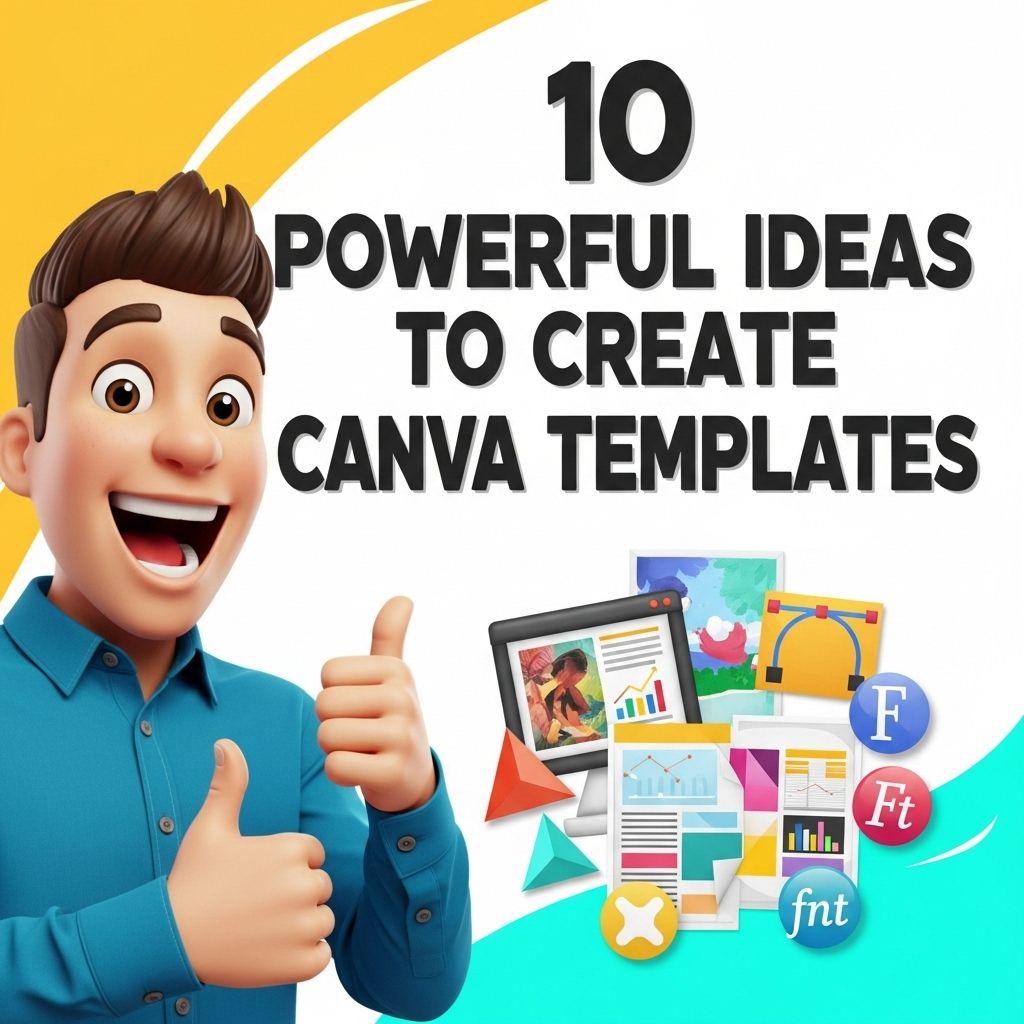
Canva has transformed the way individuals and businesses create visual content, making it accessible to everyone from beginners to seasoned graphic designers. With its user-friendly interface and a plethora of templates, Canva empowers users to produce stunning visuals in a matter of minutes. However, while many users rely on existing templates, creating your own unique designs can set you apart and enhance your brand’s identity. In this article, we will explore ten powerful ideas to create Canva templates that not only engage viewers but also elevate your content.
Creating visually appealing designs in Canva can be significantly enhanced by utilizing templates. Here are 10 powerful ideas for creating Canva templates that streamline your workflow and elevate your brand’s identity. To further enhance your design skills, learn how to use logo mockups effectively.
Table of Contents
1. Understand Your Audience
The foundation of any effective design is a thorough understanding of your target audience. Tailoring your templates to resonate with their interests, preferences, and pain points is crucial. Here’s how to gather insights:
- Conduct surveys and interviews to gather feedback.
- Analyze competitors to identify gaps in the market.
- Utilize social media insights to understand trending preferences.
Example: Audience Personas
| Persona | Age | Interests |
|---|---|---|
| Young Professionals | 25-35 | Networking, Career Growth |
| Parents | 30-50 | Family Activities, Budgeting |
| Students | 18-24 | Education, Social Causes |
2. Choose Your Brand Colors Wisely
Colors evoke emotions and can significantly influence a viewer’s perception of your brand. When designing Canva templates, choose a color palette that aligns with your brand identity. Consider the following:
- Use color theory to understand how colors work together.
- Limit your palette to 3-5 core colors for consistency.
- Use tools like Adobe Color or Coolors to generate color schemes.
3. Utilize Grid Layouts
Grid layouts provide structure and balance to your designs, making them visually appealing. Canva offers various grid options, allowing you to create organized compositions. Here’s why grids are essential:
- Enhance readability and flow of information.
- Help in aligning elements consistently.
- Make it easier to create responsive designs for different platforms.
Creating a Grid Layout in Canva
- Open Canva and select your desired template size.
- Go to the ‘Elements’ tab and search for ‘Grids.’
- Drag and drop the grid onto your canvas and start designing!
4. Incorporate High-Quality Images
Visuals are a critical component of any template. Using high-quality images can significantly enhance the overall look of your design. To ensure you’re using the best images:
- Utilize Canva’s library of stock images.
- Consider purchasing images from premium stock photo websites.
- Use your original images to personalize the design further.
5. Experiment with Typography
Typography is more than just choosing a font; it involves selecting typefaces that complement your message. Here are some tips:
- Limit your use to two or three fonts across the template.
- Use contrast to highlight important information.
- Ensure readability across all devices and sizes.
Font Pairing Examples
| Heading Font | Body Font |
|---|---|
| Montserrat | Open Sans |
| Lora | Roboto |
| Oswald | Arial |
6. Create Custom Icons
Icons can convey complex ideas in a simple manner. Instead of relying on generic icons, use Canva to create custom icons that align with your brand’s theme:
- Use Canva’s shapes and lines to design your own icons.
- Keep your icons simple and recognizable.
- Ensure they match your overall design style.
7. Include Call-to-Action (CTA) Elements
Templates designed for marketing purposes should have clear call-to-action elements. Here’s how to effectively incorporate CTAs:
- Use contrasting colors to make CTAs stand out.
- Utilize action-oriented language (e.g., “Download Now,” “Sign Up Today”).
- Place CTAs prominently in the design for maximum visibility.
8. Design for Multiple Platforms
Your templates should be versatile enough to be used across various platforms, such as social media, emails, and websites. Consider the following:
- Create different sizes of the same template for platforms like Instagram, Facebook, and LinkedIn.
- Ensure text and visuals are adaptable for each format.
- Test your designs in different contexts to ensure effectiveness.
9. Use Mockups to Present Templates
Displaying your templates in realistic settings can boost their appeal. Mockups help potential users visualize how your templates would look in action. Consider these tips:
- Use mockup generators or Canva’s mockup templates.
- Display your designs on various devices like phones, tablets, and laptops.
- Incorporate lifestyle images to show the template in use.
10. Gather Feedback and Iterate
After creating your templates, don’t forget to seek feedback. This can help you refine your designs and make them more appealing. Follow these steps:
- Share your templates with a select audience for initial thoughts.
- Make adjustments based on constructive criticism.
- Continuously iterate to improve your designs over time.
In conclusion, creating powerful Canva templates requires a blend of creativity, strategy, and audience understanding. By implementing the ideas outlined above, you can craft templates that not only look professional but also resonate with your audience and support your branding efforts. Embrace the power of design and start creating templates that stand out!
FAQ
What are Canva templates?
Canva templates are pre-designed layouts that allow users to easily create graphics, presentations, social media posts, and more by customizing text, images, and colors.
How can I create engaging Canva templates?
To create engaging Canva templates, focus on clean layouts, use high-quality images, incorporate brand colors, and ensure text is easy to read.
What types of Canva templates can I create?
You can create a variety of Canva templates including social media posts, business presentations, resumes, infographics, and marketing materials.
Can I sell my Canva templates?
Yes, you can sell your Canva templates on platforms like Etsy or your own website, but make sure to comply with Canva’s licensing terms.
What are some tips for designing effective Canva templates?
Some tips include using consistent fonts, maintaining a balanced layout, providing space for customization, and keeping the design aligned with your target audience.
Are there any resources to help me create Canva templates?
Yes, there are many online resources, including tutorials, courses, and design blogs, that can provide inspiration and guidance for creating Canva templates.